in this article
what is a design system
Design systems are collections of colours, typography, icons, styles, components, and guidelines that are used to create consistent and cohesive visual experiences across a range of products and platforms.
Design systems can improve collaboration and communication among designers, developers, and other stakeholders, while also making it easier to maintain and update design assets over time.
do you need one
If you’re working on a small project, or are the sole designer, a design system may not be necessary. However, if you’re working in a large team, or you’re designing for a company or brand and a consistent visual identity is essential, a design system can be a great benefit.
Ultimately, the decision to use a design system should be weighed up based on the additional scope needed to build out and maintain the system.
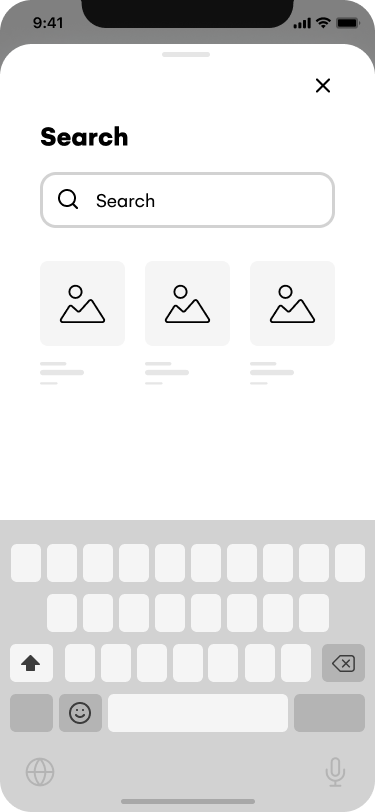
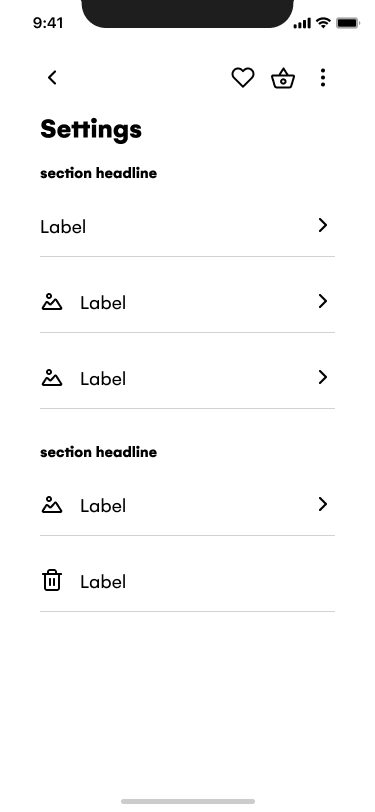
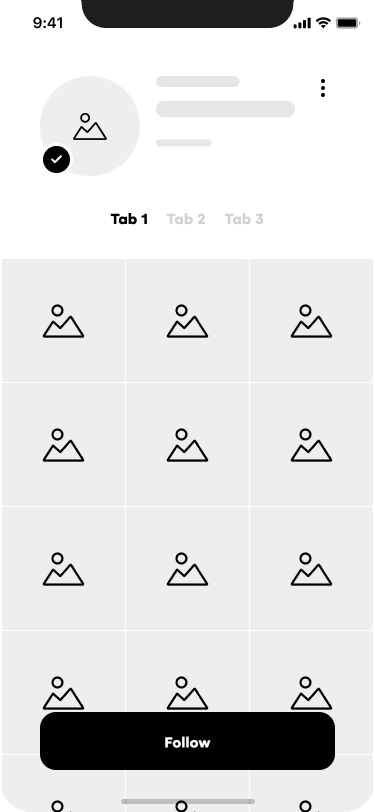
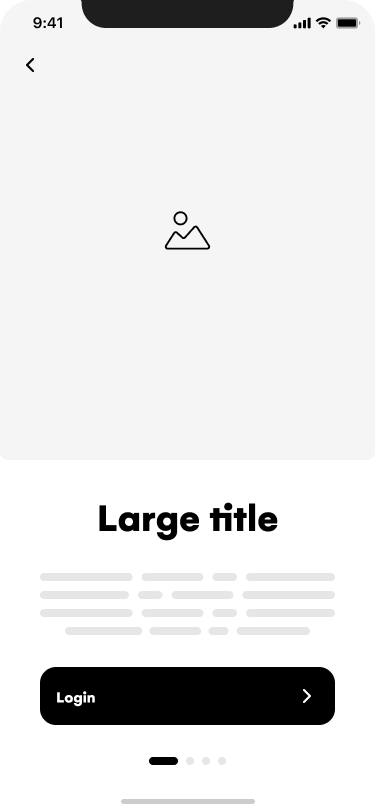
methodologies
There are lots of methodologies to choose from when building a design system, each with their own benefits and drawbacks.
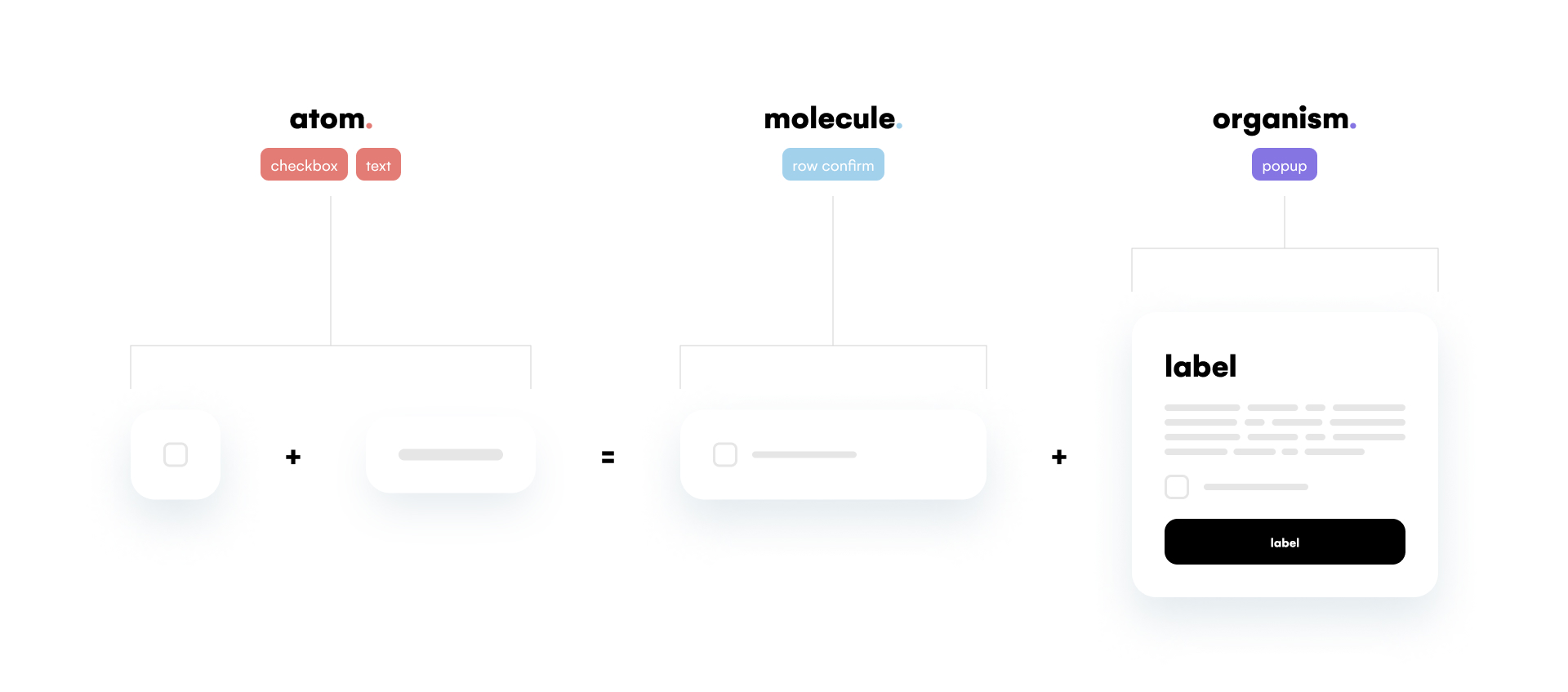
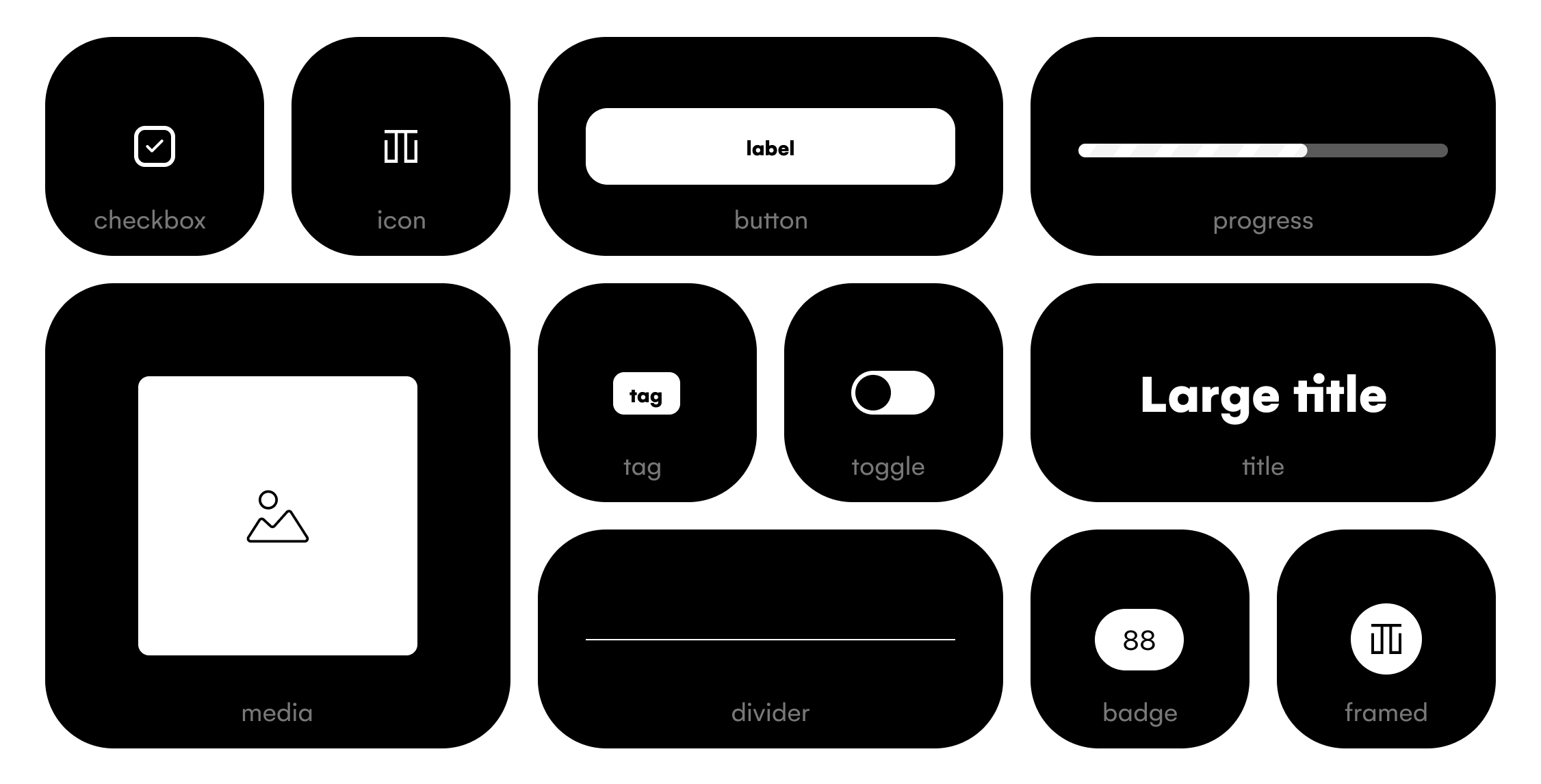
I tend to opt for Atomic design by Brad Frost. Inspired by chemistry it treats elements that cannot be broken down further, think buttons or icons, as atoms. The thinking is, combining these elements together creates larger components, like atoms forming molecules in nature.
By breaking down components into their basic elements you can increase workflow and gain greater flexibility, scalability, and consistency from your design system.
Read more about Brad Frost’s Atomic design here.
creating a design system
best practices
- Follow the Atomic design methodology and break components into atoms.
- Organise components with / naming.
- Consider and organise component variables at the appropriate atomic level.
- Make components responsive with auto-layout and ensure layout consistency.
- Keep layers simple to make components more flexible and reusable.
You can build out and store your design system in one central Figma file and include this document in any subsequent file.
file setup
- Start by creating a new Figma file ⌘N and name it “Design system”
- Create a new frame F and rename it “atoms”
colours
- On the atoms frame create a new frame F and rename it swatch
- In Figma’s right sidebar, find Fill properties and press the +
- Figma will add a colour fill to the frame
- In the Fill properties click the ❏
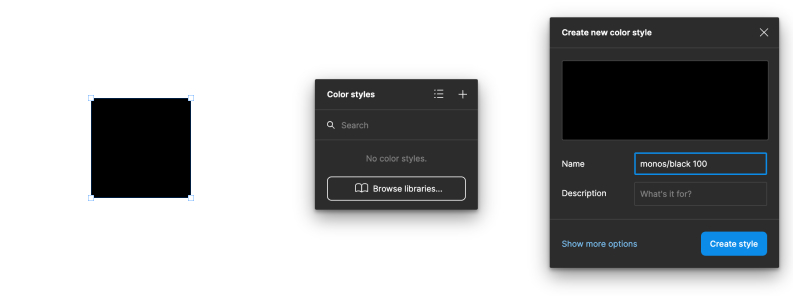
- Change the colour’s hex to #000000
- Click the ∷ at the top right of the Fill properties
- Click the + and add in [name field] “monos/black 100”
- Click Create style
Build out the rest of your design systems colours by repeating the steps above.
Tip: You can organise styles and components using the / when naming
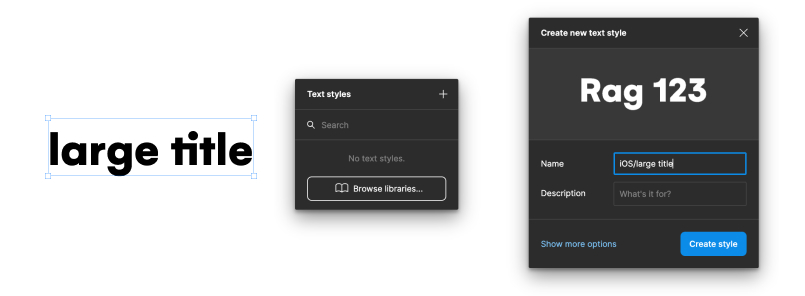
typography
- Add a new text box T and type “large title”
- In Figma’s right sidebar find Text properties
- Update the size to 34px
- Update the line height to 41px
- Click the ∷ at the top right of the Text properties
- Click the + and add in [name field] “iOS/large title”
- Click Create style
- Delete the text element
Great we’ve just defined a large title with a size and line height. Now whenever we create a new text element we can link it with this style.
Note: Not all properties are saved to text styles like colour for instance, you can find all the properties Figma saves when creating text styles here.
Note: The font size and line height we defined is from Apples Human Design Language. You can continue adding styles to match these by finding all their typography values here.
linking styles
- Add a new text box T and type “colour”
- Click the ∷ at the top right of the Text properties
- Select the iOS/large title from the list
- Click the ∷ at the top right of the Fill properties
- Select the monos/black 100 style
Defining styles and associating them elements allows you to have consistency across designs as well as being super quick to update from a central location.
components
Let’s create a simple title atom.
- Select the “colour” text element
- Rename the layer to “title”
- In Figma’s right sidebar find Text properties and click the …
- Change Resizing to Auto height ≡
- Resize the width to 295px
- Click create component ❖ or ⌥⌘K
- In Figma’s right sidebar find Fill properties
- Click - to delete the fill Figma adds by default
Let’s make another atom this time a radio button.
- Create a new frame F and rename it “radio”
- In Figma’s right sidebar constrain proportions by clicking the broken link
- Resize the frame’s width to 24px
- In the frame add a new circle O constrain proportions and resize it to 24px
- Double click the circle and delete the fill
- In Stroke click ∷ and select black 100
- Increase the stroke width to “2”
- Click create component ❖ or ⌥⌘K
We’ll enhance this later on for now let’s combine these two atoms into a row molecule.
- Create a new frame F and rename it “molecules”
- From your Assets drag onto the frame an instance of your title and radio atoms
- Select both and align along the vertical centre
- In Figma’s right panel find Auto Layout and click +
- Adjust the Horizontal space between items to 16px
- Rename the Auto layout frame to “row/title“
- Select the radio and click ❖ to create a new component
- Rename the new component “row/leading”
- In the layers panel, select “row/title”
- Click create component ❖ or ⌥⌘K
- Double click the title and change horizontal resizing to “Fill container”
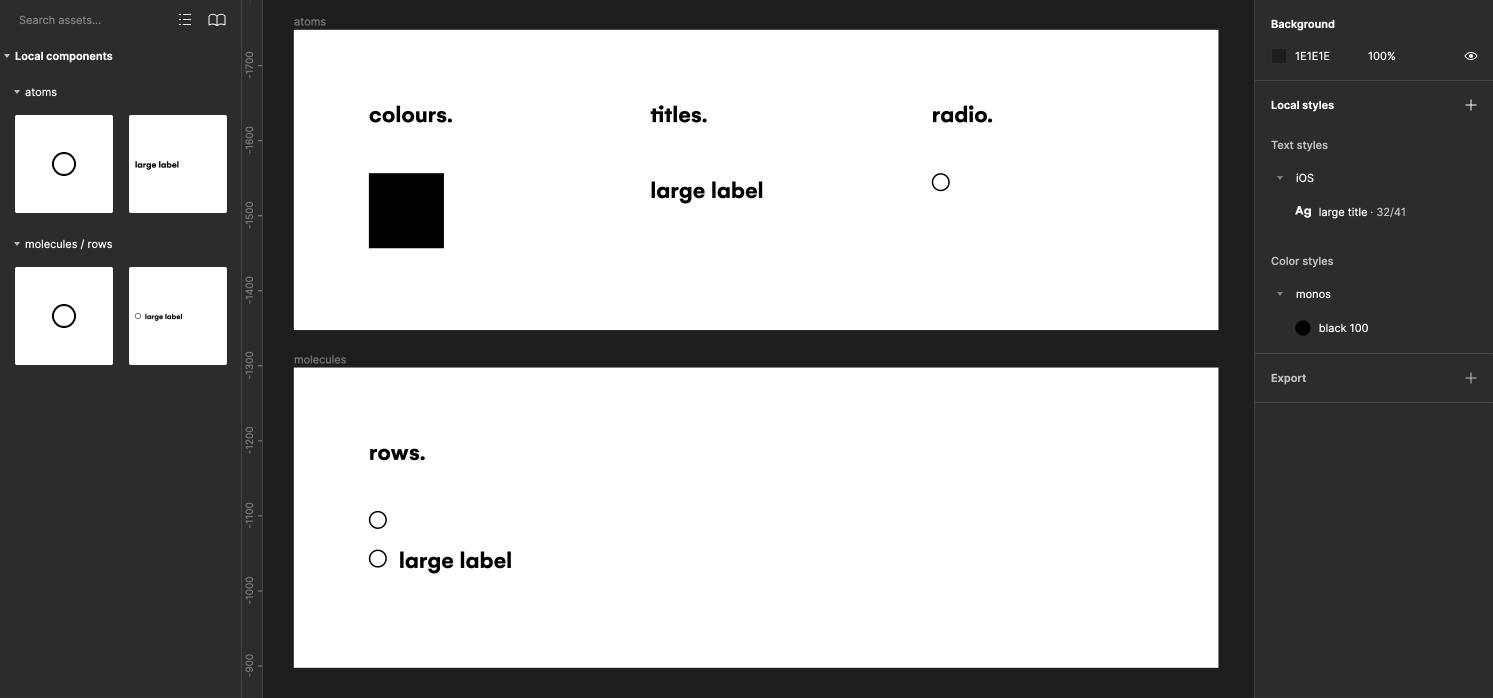
Amazing, now in our Asset panel we should have a new dropdown called “molecules/row” and a new molecule called “row/title”.
Note: The leading component we made gives our components extra flexibility which we’ll look more at next with variables. As it’s not a component we want users of the design system to freely use we can hide it from them by right clicking it in the Assets panel and selecting “Hide when publishing”.
variables
Variables …
- Back on the atoms frame select the radio
- In Figma’s right panel find Properties and click +
- From the dropdown select variant
- Under the row/title click the new +
- In the right panel and under Current variant is a focused input field
- Type “Selected” and press enter
- Double click the “Property 1” field and change to “state”
- Double click the circle and hit ⌘D to duplicate
- Delete the new circles stroke and click ∷ under Fill and select black 100
- Resize the new circle to 14px
- Centre align the circle both horizontally and vertically
Great we’ve just created two states for our radio button.
using your design system
- Deselect everything and click ⌵ next to the files name
- Click Publish library…
- You can enter version history here
- Click Publish
- In any other file click Assets in Figma’s left sidebar
- Click the book icon
- Toggle on the “Design system” file
Once you’ve turned on your design system in a new file you’ll gain access to any styles and components saved within the design system.
Note: Any updates you make to the design system will need to be re-published using steps 1-4. Notifying any files that use the design system of changes made.
conclusion
Start with the foundations your product needs, then build reusable components from those shared styles. Keep the structure simple, test components in real layouts, and publish updates as the system develops. A useful design system should make everyday design work clearer, more consistent and easier to maintain.